Vidoza AI Video Maker
- 0.0
- Rating
- 10.00K
- Installs
- Free
- Price

 Analysis by App-foxy
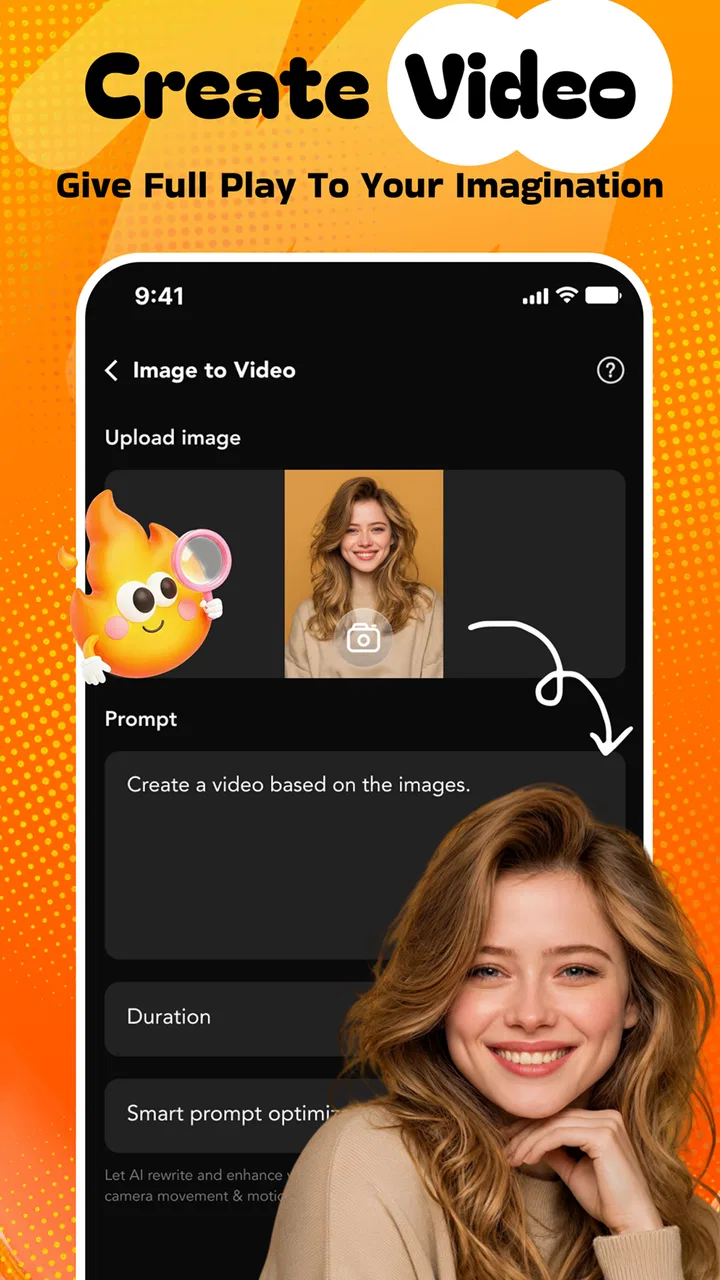
I tested Vidoza AI Video Maker as a quick creative tool for turning ordinary photos into short, animated video pieces. Its appeal is easy to understand: instead of opening a full video editor, arranging a timeline, choosing transitions, and adjusting motion by hand, I can start with an image and explore an AI-assisted result much faster. That makes it interesting for casual creators, families sharing a tablet, and anyone who wants a more lively way to present photographs.
At the same time, I would not treat it as a complete replacement for a traditional editor. The experience is centered on transforming still images with movement and effects, so it is best judged as a focused AI video creation app, not as an all-purpose production studio. My overall impression is that it is most useful when speed and experimentation matter more than detailed control.
How it feels in a shared household
A realistic use case is a shared family device after a birthday, school event, trip, or ordinary weekend outing. One person may have the photos, another may want to choose the mood, and someone else may simply want to see the finished result. On a phone or tablet, that kind of casual collaboration can be more approachable than asking everyone to learn a conventional editor.
You May Also Like

 AccuWeather: Weather Radar
AccuWeather Review: A Quick, Clear Forecast for Everyday Decisions
For everyday plans, the best forecast is the one you can understand quickly. AccuWeather makes rain timing, radar, and local conditions easy to act on, with a few trade-offs.

 Hill Climb Racing
Why Hill Climb Racing Still Turns Crashes Into One More Run
A tiny car, a bumpy hill and one more upgrade: Hill Climb Racing keeps resurfacing because its simple chaos makes every near-miss feel personal.

 AliExpress - Shopping App
AliExpress Makes Global Shopping Feel Personal, but Shoppers Bear the Risk
AliExpress turns a global marketplace into a pocket-sized discovery engine. Its reach is useful, its shopping loop compelling, and its trade-offs easy to miss.

 Lords Mobile: Kingdom Wars
Lords Mobile Is a Kingdom-Building Routine, Not a Quick Match
A case-by-case verdict on the building, battles, device demands, and social commitments that make Lords Mobile rewarding for some players and exhausting for others.

 PDF Scanner app - TapScanner
TapScanner Makes Paperwork Easier to Capture, Check, and Share
TapScanner makes scanning with a phone feel less like a rescue operation and more like a dependable step in getting work done. Its capture tools are useful, though not flawless.

 Block Blast!
Block Blast! Shows How Much a Puzzle Game Can Leave Out
A quiet grid game shows why puzzle players increasingly value instant clarity, repeatable skill and low-pressure play—and where the genre still needs to catch up.
More From Our News Desk
View All News


I can imagine a parent selecting a few images from a family gathering, a teenager trying a more dramatic visual style, and a relative watching the result without needing to understand editing terminology. The important distinction is that this is a creative workflow, not a household management tool. It helps people make visual content together, but it should not be mistaken for an app designed around family accounts, child profiles, shared libraries, or approval systems.
That boundary matters on a device used by several people. I would decide in advance which photos are appropriate to use, who is allowed to edit them, and where the finished videos should be saved or shared. Those decisions belong to the household because the app’s core purpose is creation rather than coordination. Keeping that expectation clear avoids disappointment when several people use the same device.
The app comes from IT Hub Info and belongs to the art and design category. It is free to install, which lowers the barrier for trying a few ideas, although optional purchases range from $1.99 to $99.99 per item. I would therefore let a family member explore the basic experience before anyone buys anything, especially when the device is shared with younger users or when payment access is stored on the phone.
What the first creative session is really for
My advice is to treat the first session as a test of style rather than a serious editing project. Pick a small group of photos with a clear subject and see how the motion changes the feeling of the images. A portrait, a landscape, and a group shot can reveal more about the app’s usefulness than loading a large mixed folder all at once.
This approach also makes household coordination easier. Instead of several people changing the same project repeatedly, one person can prepare a small selection, another can give feedback, and the creator can make the final choice. That simple division of roles reduces accidental edits and makes the process feel less chaotic on a shared screen.
One of the less obvious strengths of an AI-based workflow is that it encourages comparison. Rather than becoming attached to a complicated timeline, I can judge whether the movement adds something to the photo. If it makes the image feel artificial, distracting, or too busy, the right answer may be to return to the original still image instead of forcing an effect into the final video.
Setup boundaries before anyone starts
The minimum operating requirement is Android 7.0 or later, so compatibility should be checked before planning a household project around it. The current version is 1.0.1, which tells me to keep expectations practical: I would approach it as a focused tool that may still feel more limited than mature editing suites with years of accumulated features.
Because the app is free to begin with but includes in-app purchases, I would establish a clear rule about spending before handing the device to another person. This is particularly important when a child or guest uses a phone that already has a payment method attached. A free download does not mean every creative option necessarily stays free, so the person supervising the device should remain involved when a purchase screen appears.
I would also separate the question of access from the question of ownership. If several people use one phone, the photos, generated videos, and any saved work may become mixed with personal material. A cleaner routine is to create the video, review it immediately, and then move or share the finished result through the household’s normal storage method. I would not assume that the app itself provides a family workspace or neatly divided personal areas.
Another useful preparation step is choosing source images carefully. AI motion works best when the main subject is easy to identify and the composition is not already overloaded. A photo with several overlapping people, cluttered backgrounds, or an unclear focal point may produce a less convincing result than a simpler image. This is not a reason to avoid experimentation; it is a reason to compare images intentionally.
For shared use, I would begin with copies rather than irreplaceable originals. That gives everyone freedom to test different effects without worrying about losing the household’s only version of an important photograph. It also makes it easier to compare an animated result with the untouched image and decide whether the transformation genuinely improves it.
Coordinating ideas without turning the app into a committee
Creative disagreements can appear quickly when several people are choosing effects. I found that the most useful conversation is not “which option looks coolest?” but “what should this photo communicate?” A calm family portrait may need restrained movement, while a travel image may benefit from a more energetic treatment. Starting with the purpose of the clip keeps the result from becoming a random collection of visual tricks.
A practical household workflow is to assign one person as the editor for a single session. Others can suggest photos or describe the mood they want, but only one person makes the changes. This is especially helpful on a small phone screen, where passing the device around can lead to accidental selections and makes it harder to remember which version was preferred.
I also recommend keeping the first output short and focused. A small set of related images usually communicates more clearly than a long sequence assembled simply because the photos are available. The app’s attraction is fast transformation, and that advantage is weakened when the project becomes an unplanned archive of every image on the device.
There is a useful trade-off here. AI can reduce the technical work needed to create motion, but it also means I surrender some direct control over exactly how each element moves. For a casual household memory, that exchange may be worthwhile. For a carefully timed presentation, a manual editor with a visible timeline is likely the better choice.
That comparison is important. Traditional mobile editors are usually stronger when I need precise trimming, layered audio, manual transitions, captions, or frame-by-frame decisions. Vidoza AI Video Maker is more appealing when the starting point is a photo and the desired result is a quick visual transformation. I would choose between them based on the job, not on the promise that one can replace the other.
Age, trust, and appropriate expectations
The content rating is Mature 17+, so I would not place this app in the same category as a child-focused drawing tool. That rating should shape how a shared household introduces it, even if the intended project is harmless family photography. An adult should review the app’s use on a communal device and decide whether it fits the people who can access that device.
This is also a trust issue rather than merely an age label. Photos can include faces, homes, school settings, travel details, and other personal information. Before experimenting, I would avoid using images that reveal more than necessary, particularly when the finished video may be shared beyond the household. The creative result may be attractive, but the source material still deserves the same care as any personal photograph.
I would explain to younger users that an animated image is not automatically a faithful record of what happened. Motion and effects can change the mood or emphasis of a photograph. That makes the app fun for storytelling, but it also means the result should be presented as an edited creation rather than as an untouched memory.
Another trust consideration is spending. Since individual in-app purchases can reach $99.99, I would never assume that a child understands the financial difference between trying an effect and approving a transaction. The safest household habit is simple: no purchase without an adult checking the screen and agreeing to it. That rule is more dependable than expecting every user to interpret purchase prompts correctly.
For adults, the app is easier to evaluate on its creative merits. I like the possibility of turning a still image into something suitable for a message, a personal montage, or a social post without investing a long evening in editing. But I would still review every result before sharing it, because a quick AI transformation can produce a mood that does not match the people or event shown.
Useful techniques for better results
My first practical tip is to crop with the intended motion in mind. If the subject is pressed tightly against an edge, there is less visual room for a convincing animated treatment. A little breathing space around the main person or object can make the result feel less cramped, even before any effect is applied.
My second tip is to group photos by visual purpose rather than by the date they were taken. Three images from different moments can work together if they share a color mood, subject, or direction of movement. Conversely, several photos from the same event may feel disconnected if one is a close portrait, another is a dark indoor shot, and the last is a busy outdoor scene.
My third tip is to compare the animated result with a simple presentation of the original images. The AI version should earn its place by adding emotion, rhythm, or attention. If the movement distracts from a person’s expression or makes a meaningful photo feel artificial, the still image may be the stronger choice. This is an easy quality check that many first-time users skip.
For a household project, I would also create a naming habit outside the editing process: use a clear event name when saving or sharing the finished clip. That small step becomes valuable when several people contribute photos and the device contains multiple experiments. It prevents the final version from being confused with a discarded test.
Finally, I would avoid assuming that one effect suits every image. A dramatic treatment that works on a landscape may overwhelm a face, while a subtle motion that looks elegant on a portrait may disappear on a wide scene. The best results come from matching the visual treatment to the subject instead of applying the same idea to everything.
Where it fits beside familiar alternatives
Compared with a standard slideshow maker, this app has a more expressive starting point because it focuses on adding motion and effects to photos rather than merely placing them in sequence. That can make a small collection of images feel more cinematic without requiring the user to understand keyframes or transition settings.
Compared with a full mobile video editor, it is likely to feel less suitable for precise projects. If I need spoken narration, carefully timed music, detailed text placement, multiple layers, or exact control over cuts, I would reach for a conventional editor instead. The extra complexity in those tools is justified when accuracy matters.
Compared with a social platform’s built-in creation tools, a dedicated app can feel more focused because the creative task begins with the photo itself. However, I would still consider where the finished video is going. If the goal is only an immediate post with platform-specific stickers and captions, the social app may be faster. If the goal is to transform personal photos first and decide later how to share them, this tool makes more sense.
The free entry point is helpful for exploring that difference, but the purchase range changes the value calculation. I would not pay for an option simply because it produces a more dramatic result. I would first ask whether the effect improves the story, whether the household will use it repeatedly, and whether a manual editor would provide better control for the same project.
Who should use it, and who should skip it
I would recommend trying it to someone who has a folder of photos and wants a quick creative experiment rather than a technically exact film. It suits casual visual storytelling, personal memories, mood-based clips, and shared household sessions where one person can guide the process while others contribute ideas.
It is also a reasonable choice for users who find conventional timelines intimidating. Starting from a photo lowers the learning burden, and the AI approach can make the first result feel rewarding sooner. That matters for people who want to create something attractive but do not want to spend time learning every editing control before seeing a result.
I would skip it, or at least choose another tool first, if the project requires professional-level precision, extensive sound work, complex captions, or dependable manual timing. I would also be cautious if the main users are under the Mature 17+ rating or if the household needs separate accounts, child controls, or formal approval workflows. Those are not the problems this app is designed to solve.
Users with very private images should think carefully before beginning. The safest approach is to use suitable copies, avoid unnecessary personal details, and review the finished video before sharing it. The app can help with presentation, but it does not remove the responsibility that comes with handling other people’s photographs.
My household verdict
After using it as a focused photo-to-video experiment, I see Vidoza AI Video Maker as a convenient creative shortcut rather than a complete editing environment. Its strongest quality is the way it invites a quick transformation: choose a photo, explore motion and effects, and judge whether the image gains a new sense of life.
The app is free, supports Android 7.0 and later, and has passed the early adoption stage with over 10 thousand installs. Those details make it approachable for trying on a compatible device, but they do not change the need to consider the Mature 17+ rating and the optional purchase range before using it in a family setting.
My recommendation is to use it with clear boundaries. An adult should guide shared-device access, decide which photos are suitable, monitor purchases, and review the final result before it leaves the household. With that structure, it can be a fun way to turn ordinary images into more expressive clips.
The best reason to choose it is speed with a creative twist; the best reason to look elsewhere is the need for exact control. If that trade-off matches your project, this art and design app is worth exploring. If your household needs advanced editing, child-oriented access, or a carefully managed collaborative workspace, I would choose a different solution and keep this one for occasional visual experiments.
FAQs for Vidoza AI Video Maker
01What is Vidoza AI Video Maker and what can I create with it?
Vidoza AI Video Maker is designed to help users produce short videos with the assistance of artificial intelligence. Depending on the available tools and version, you can start from a text prompt, images, clips, templates, or a selected theme, then combine visuals, transitions, music, captions, and effects. It is mainly useful for social media content, promotional clips, stories, presentations, and quick creative projects.
02Is Vidoza AI Video Maker suitable for beginners without video-editing experience?
Yes, the app is aimed at users who want to create videos without learning complex professional editing software. Its automated generation features, templates, and guided editing workflow can make the process easier for beginners. However, the quality of the final result still depends on the instructions, source media, and adjustments you provide. Users seeking precise timeline editing may need time to understand the available controls.
03Does Vidoza AI Video Maker create videos completely automatically?
Vidoza AI Video Maker can automate important parts of the production process, but it should not be treated as a fully independent video studio. AI-generated results may require reviewing scenes, correcting text, changing the soundtrack, replacing unsuitable images, or adjusting timing. Before exporting, carefully check names, captions, visual accuracy, and pacing, especially when creating content for business, advertising, or public publishing.
04Is Vidoza AI Video Maker free to download and use?
The application may be available to download without an upfront charge, but some features can be restricted by subscriptions, credits, advertisements, watermarks, export limits, or in-app purchases. Pricing and included tools may vary according to the platform, region, and current version. It is recommended to review the app-store listing and subscription terms before starting a trial or confirming any payment.
05Can I save and share videos made with Vidoza AI Video Maker?
After creating a project, the app may provide options to export the finished video to your device or share it through supported social networks and messaging services. Export quality, resolution, duration, file format, and watermark rules can depend on the selected plan. Make sure you have permission to use imported photos, music, logos, and video clips, since the app does not automatically provide copyright clearance for external content.
Pros
- Creates videos quickly from simple text prompts.
- Useful templates help beginners start without editing experience.
- AI-generated visuals can make social posts more engaging.
- Supports fast experimentation with different video concepts.
- Convenient for creating short promotional or personal clips.
Cons
- AI results may not always match the prompt accurately.
- Advanced editing controls can feel limited for professionals.
- Some features or exports may require a paid subscription.
- Video generation quality can vary between projects.
- Processing may take longer when creating complex videos.

Vidoza AI Video Maker
Gallery